Your Files

Use audio you already own

A CD rip, a custom processional, a friend's cover version, or a track you bought years ago. If the file is on your phone, Wedding Player can use it. This page covers supported formats, where files need to live, how to get them onto the device without a computer, and what happens when you import.

Supported formats

What Wedding Player accepts

iPhone and iPad

MP3, M4A, WAV, AIFF.

Android

MP3, M4A, WAV, FLAC, OGG.

  • MP3 is the universal default. Anything downloaded, ripped, or exported is almost certainly an MP3.
  • M4A (also called AAC) is Apple's preferred format. iTunes Store purchases and tracks exported from the Music app land in this format.
  • WAV and AIFF are uncompressed. Larger files, mostly from professional sources.
  • FLAC and OGG work on Android only. If you might also use the same file on iPhone, convert it to MP3 or M4A first.

If your file is in a format Wedding Player does not accept (FLAC on iPhone, WMA anywhere, and so on), convert it before bringing it onto the device. Free converter apps exist on both iPhone and Android.

Where the file needs to live

Anything your file manager can see, Wedding Player can pick up

iPhone (Files app)

  • iCloud Drive. Files placed there from any signed-in device appear within seconds.
  • On My iPhone. Local storage, no cloud.
  • Dropbox, Google Drive, OneDrive. All surface in Files once their iOS apps are installed.

Android (Files picker)

  • Google Drive. Files placed there from any signed-in device appear within seconds.
  • Downloads / Local storage. Anything saved directly to the device.
  • Dropbox, OneDrive, and similar. Surface through their Android apps once installed.

Getting the file onto your phone

Three reliable on-device routes

1. From a cloud drive

The smoothest path. Save the file into iCloud Drive (iPhone) or Google Drive (Android) from any device that already has it. The file syncs automatically and is visible in the Files app within seconds.

2. From an email, message, or another app

  • iPhone or iPad: tap and hold the audio attachment, choose Save to Files, pick a destination.
  • Android: tap the attachment, choose Save or Download. It lands in your Downloads folder.

Apps with built-in sharing (Voice Memos, GarageBand, third-party recorders and editors) all expose a Share or Export action that drops the file into Files or Downloads.

3. AirDrop or Quick Share

  • iPhone or iPad: receive a file via AirDrop, choose Save to Files.
  • Android: receive via Quick Share or Nearby Share. The file lands in Downloads.

Editing before import

If you need to trim or fade

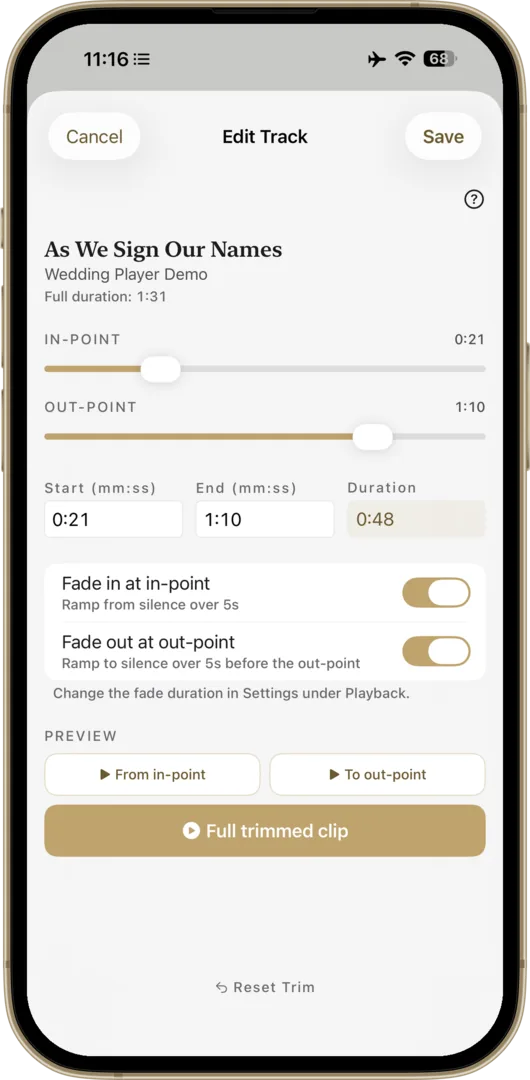
If you need to trim a track, add a fade, or otherwise customise it, do it before importing. On the phone itself:

  • iPhone or iPad: GarageBand (free) does trim, fade in / fade out, and export to M4A. Voice Memos handles quick trims.
  • Android: WaveEditor, Lexis Audio Editor, or similar editors handle trim, fade, and export to Downloads or Google Drive.

Wedding Player does not currently offer trim controls inside the app, so any timing edits happen in your editor of choice first.

If you need to rip a CD

Ripping is a computer job

Phones and tablets do not have optical drives and do not support audio CDs natively. If you have a Mac or Windows PC, use the Music app (Mac), Windows Media Player (older Windows), or any general-purpose audio ripper, and choose MP3 at 320 kbps or M4A as the output format. Save the resulting file into iCloud Drive (iPhone or iPad) or Google Drive (Android), and it appears on your phone within seconds.

If you do not have a computer at all, the realistic alternative is to find the same track in a store and buy it outright. See Buy Individual Tracks for global on-device stores.

Inside the app

What happens when you import

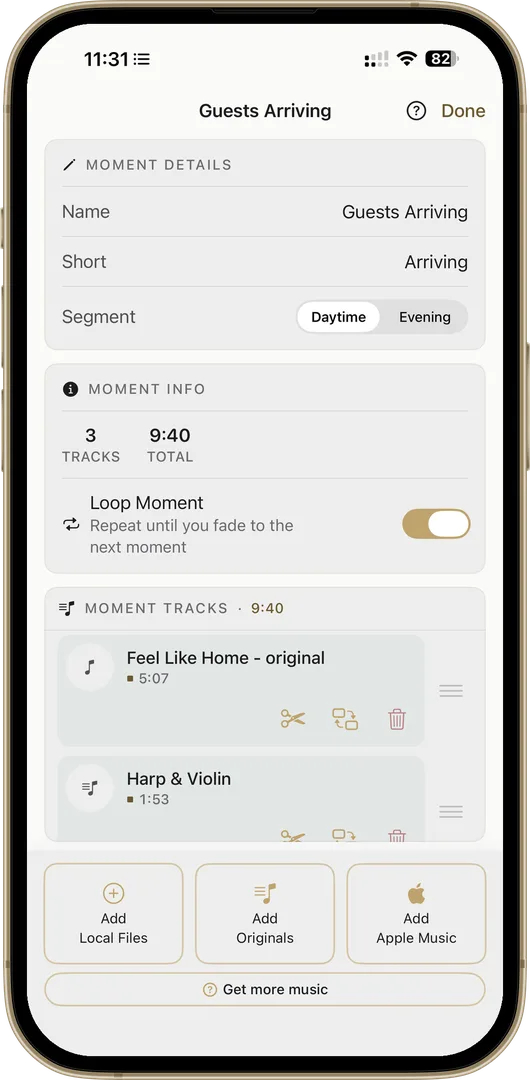
Wedding Player does three things automatically the moment a file lands in a moment:

  1. Copies the file into the moment's storage. The original file in Files stays untouched. Even if you later delete it from iCloud Drive or another location, the copy inside Wedding Player keeps working.
  2. Runs volume normalisation. Different tracks come from different masters at different levels. Normalisation brings everything into the same loudness range so a quiet acoustic intro and a loud orchestral processional do not startle the room.
  3. Adds it to the playlist with crossfade and fade-out support. Same engine that handles Apple Music and Wedding Player Originals tracks. Mixed-source moments work seamlessly.

Before the day

Things to check

  • Pre-flight Live Mode. Tap Go Live during rehearsal. The app warns you if any local file is missing or empty. If you imported a track and later moved or deleted the source, this is where you find out.
  • Run a full rehearsal in Airplane Mode. Local files do not need a network at all, but the rehearsal confirms it.
  • Volume on the venue PA. Normalisation gets you a consistent baseline, but the final volume always wants a sound check on the actual system you will be playing through.
  • Battery and Do Not Disturb. Live Mode reminds you about both, but it is worth setting up the night before.

A note on streaming services

What about ripping from Spotify or YouTube?

We cannot recommend ripping audio from streaming services. It violates their terms of service and, depending on where you live, can violate copyright law. If you need a specific song, check whether it is available on Apple Music. If you have a subscription you can use it directly inside Wedding Player without any file management, or you can buy the track outright from one of the stores listed in Buy Individual Tracks.

The music in your ceremony is your responsibility. Most weddings are private events covered by personal-use exemptions, but venues sometimes carry their own performance licences that may apply. Talk to your venue if you are unsure.

Ready to plan your ceremony music?

Free to download. Drop in your own files alongside Wedding Player Originals and Apple Music.

Download Wedding Player